How to Use Claude Skills: Enable, Install, Trigger, and Manage Them (2026 Guide)
A step-by-step guide to Claude Skills in the Claude app: turning them on, uploading or recording your own, how Claude decides when to use one, managing and sharing skills, and fixing the two things that go wrong most.
AgentVolt · · 6 min read
Why this matters
Claude Skills are the feature most people have turned on without knowing it. If you have ever asked Claude for a spreadsheet and gotten a real .xlsx with working formulas, a skill did that. The same mechanism can teach Claude how you write cold emails, structure meeting notes, or review a contract - but only if you know where the switch is, how to add your own, and how to tell when a skill is actually running.
This is the practical guide: enabling skills, installing them, triggering them, managing them, and fixing the two things that go wrong most often. It is specific to the Claude app (claude.ai, desktop, mobile, and Cowork). If you want skills in Claude Code, Cursor, or ChatGPT's Codex, the cross-agent install guide covers each of those.
What a Claude skill is, in one paragraph
A skill is a folder with a SKILL.md file inside: a short header with a name and a description, followed by instructions Claude follows when a task matches. Claude reads only the name and description of each enabled skill at the start of a conversation, and loads the full instructions when your request fits. Skills are available on every Claude plan - Free, Pro, Max, Team, and Enterprise - and the format is an open standard, so a skill built for Claude also works in 40+ other agents. Our agent skills guide has the full explanation.
Step 1: Turn skills on
Skills depend on code execution and file creation being enabled.
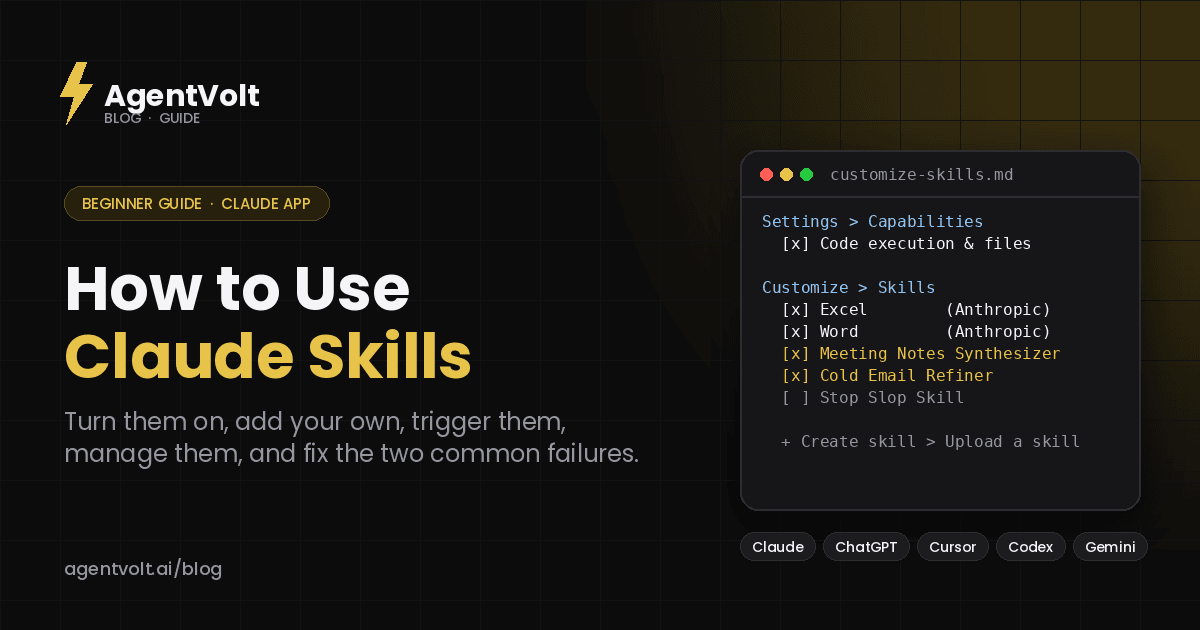
On Free, Pro, and Max, open Settings > Capabilities and turn on Code execution and file creation. On Team and Enterprise, an owner enables skills under Organization settings > Skills first, and then you enable them for yourself.
Once that is on, Anthropic's built-in skills are already active: enhanced Excel spreadsheet creation, professional Word documents, PowerPoint presentations, and PDF creation and processing. You can see them under Customize > Skills, and you can toggle any of them off if you never want Claude to reach for one.
Step 2: Add a skill
There are three ways to get a custom skill into Claude.
Upload one. Go to Customize > Skills, click +, choose Create skill, then Upload a skill, and upload a ZIP file. The ZIP must contain the skill folder at its root, not inside another folder - this is the most common upload mistake. The skill appears in your list, and you enable it with the toggle.
Install one from a marketplace. On AgentVolt, open any skill page and click Get this skill. You get the ready-to-install skill, customized to your tone, audience, and output format where the skill supports it, and upload it the same way. Every skill there is reviewed and security-scanned before it is listed, which matters because a skill is a set of instructions Claude will follow.
Record one. On Pro, Max, and Team, Claude for Mac's Cowork feature has a Record a skill option under the + button: click Start recording, do the task the way you normally would (narrating with the microphone on if you like), and Claude turns what it watched into a skill. It is the fastest way to capture a process you already have.
You can also write one by hand - it is a Markdown file - and our SKILL.md guide has a template.
Step 3: Trigger a skill
You do not invoke skills by name in the Claude app. With code execution on, Claude automatically uses a skill when it decides your request matches the skill's description. Ask for "a recap of this transcript with action items" and a meeting-notes skill fires; ask for "a tighter version of this cold email" and an email-refining skill does.
That means the description is everything. A skill described as "helps with email" will fire unpredictably; one described as "rewrites a cold email draft to be tighter and less likely to read as spam - use when the user pastes outreach" fires exactly when you would want it to.
To check whether a skill ran, open Claude's thinking or the activity in the response. When a skill loads, you can see it happen. If you are testing a new skill, Anthropic's own advice is to try several different prompts that should trigger it and confirm in the thinking that it loaded.
Step 4: Manage your skills
Customize > Skills is the control panel. Every skill - Anthropic's, yours, and any shared with you - has a toggle. Disabled skills are invisible to Claude. If a skill fires when you do not want it to, turn it off rather than deleting it.
On Team and Enterprise plans, skills can be shared with specific people or a group; a shared skill shows up grayed out until the recipient enables it, and it is view-only for them. Organizations can also publish skills to a library with a review and approval workflow, so a company-wide process gets vetted before everyone installs it.
Skills you enable in claude.ai are also available in Cowork automatically, including in scheduled tasks, so a skill plus a schedule becomes a job that runs without you. Our Cowork skills guide covers that setup.
Step 5: Fix the two things that go wrong
The skill never fires. Nine times in ten it is the description. Anthropic's troubleshooting guidance is to check that the description field clearly explains when the skill should be used, and to make sure the instructions are clear and well-structured. Add the words you actually type when you want it. The other causes: code execution is off, the skill is toggled off, or the ZIP had the folder nested one level too deep.
The skill fires when you did not want it. The description is too broad. Narrow it to the specific task, or turn the skill off until you need it.
Where skills fit with Projects and custom instructions
Custom instructions are always on and apply to everything. Projects hold documents and context for one initiative. Skills load only when a task matches and carry a procedure. Most people end up with a couple of always-on preferences in instructions, a Project per client or topic, and a handful of skills that fire across all of them. Our comparison of Skills vs Projects vs Custom GPTs goes deeper.
Skills worth enabling first
If you want to see the mechanism work before you build anything, install one of these and give it a real task:
- Meeting Notes Synthesizer - paste a transcript, get action items with owners and dates.
- Cold Email Refiner - paste a draft, get the rewrite and a note on what was wrong.
- Stop Slop Skill - removes the tells that make AI writing read as AI writing; useful on everything.
Our best Claude skills list has twelve more, by job.
Frequently asked questions
Are Claude Skills free?
Yes. Skills are available on all Claude plans including Free. Anthropic's built-in skills are included; third-party skills depend on where you get them - AgentVolt's library is included with AgentVolt Pro at $49/month.
Do I have to type a command to use a skill?
No. In the Claude app, Claude chooses a skill automatically when your request matches its description. Slash-command invocation (/skill-name) is a Claude Code feature.
Can I see which skills Claude used?
Yes. Expand Claude's thinking or activity in the response; a loaded skill is visible there. This is also how you test a new skill.
Can I share a skill I made with my team?
On Team and Enterprise plans, yes - share with specific people or a group, or publish to your organization's library. On personal plans, send the skill folder and they upload it themselves, or publish it to a marketplace.
Turn one on today
Open Customize > Skills, confirm code execution is on, and install one skill for a task you did this week. Give it that task. Watch the thinking to see it load. Once you have seen a skill fire on its own, the rest of your setup will make sense.
Browse skills for Claude on AgentVolt - 1,000+ reviewed, security-scanned skills that upload in a minute.
Skills in this post
Every one is included with AgentVolt Pro.
Meeting Notes Synthesizer
Turns a raw meeting transcript into clean action items, each with an owner and a due date.
Cold Email Draft Diagnosis and Rewrite
Paste a cold email draft and get the one problem killing replies, a short single-ask rewrite, a better subject line, and a change log.
Remove AI Writing Tells From Drafts
Strips the patterns that make text read as AI-written, with minimal edits, a change log, and placeholders instead of invented facts.