How to Install Agent Skills in Claude, ChatGPT, Cursor, Codex & Gemini (2026)
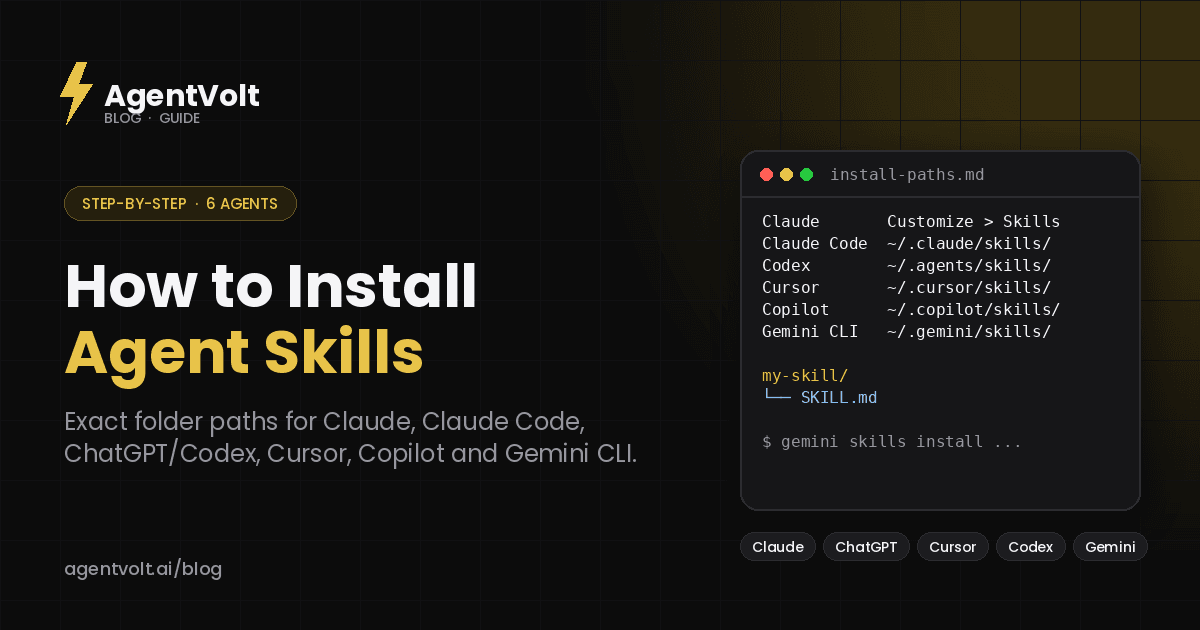
The exact folder paths and steps to install SKILL.md agent skills in Claude, Claude Code, ChatGPT and Codex, Cursor, GitHub Copilot, and Gemini CLI, plus a shortcut that skips the folders entirely.
AgentVolt · · 6 min read · Updated
Why this matters
Agent skills are portable by design: the same SKILL.md folder works in Claude, ChatGPT and Codex, Cursor, GitHub Copilot, Gemini CLI, and 40+ other agents. The catch is that every agent puts skills in a slightly different place, and the docs are scattered across a dozen sites.
This is the one page that collects them. For each major agent you get the exact folder path, how the agent picks a skill up, and how to trigger it by hand. At the end there is a shortcut that skips the folder wrangling entirely.
If you are not sure what a skill is yet, read What Are Agent Skills? first. This post assumes you have a skill folder and want it working.
Before you start: what a skill folder looks like
Every skill is a folder named after the skill, containing a SKILL.md file. The folder name must match the name field in the file, and both must be lowercase with hyphens:
cold-email-refiner/
└── SKILL.md
Some skills also include scripts/, references/, or assets/ folders. Move the whole folder, not just the file.
One more thing that applies everywhere: the .agents/skills/ directory is the cross-agent convention. Codex, Cursor, Gemini CLI, and Copilot all read from it, so if you want one install to cover several tools, that is the folder to use.
How to install skills in Claude (claude.ai)
Skills are available on every Claude plan - Free, Pro, Max, Team, and Enterprise.
- Make sure code execution is on. Free, Pro, and Max users enable it under Settings > Capabilities; on Team and Enterprise an owner enables it under Organization settings > Skills.
- Go to Customize > Skills.
- Click +, then Create skill, then Upload a skill.
- Upload your skill folder as a ZIP file.
Uploaded skills are private to your account. Claude uses them automatically when a request matches a skill's description, so there is nothing to type - just ask for the task.
How to install skills in Claude Code
Claude Code reads skills from two places, and where you put one decides who can use it:
| Scope | Path | Available in |
|---|---|---|
| Personal | ~/.claude/skills/<skill-name>/SKILL.md | All your projects |
| Project | .claude/skills/<skill-name>/SKILL.md | That repository only |
Drop the folder in, and Claude Code picks it up on the next session. It will use a skill automatically when the task fits, or you can invoke one directly by typing a slash and the folder name - /cold-email-refiner, for example.
If you enabled skills in your claude.ai account, Claude Code can sync them so you do not have to install twice. Cowork and cloud sessions load them with no setup; local sessions need CLAUDE_CODE_SYNC_SKILLS turned on, after which they appear under ~/.claude/skills/synced/.
How to install skills in ChatGPT and Codex
OpenAI's Codex - the CLI, the IDE extension, and the Codex app - supports the same SKILL.md format. It scans several locations:
| Scope | Path |
|---|---|
| Project | .agents/skills/ in your working directory, and in every parent directory up to the repo root |
| Personal | ~/.agents/skills/ |
| Admin (shared machine) | /etc/codex/skills |
To use a skill explicitly, type $ in the CLI or IDE and pick it from the list, or run /skills to see everything installed. Codex also chooses skills on its own when a task matches the description.
Codex ships a built-in installer, too: $skill-installer <name> pulls a curated skill into the right folder for you.
How to install skills in Cursor
Cursor is the most forgiving of the group. It reads from its own folders and from Claude's and Codex's, so a skill installed for any of them just works:
| Scope | Paths Cursor checks |
|---|---|
| Project | .cursor/skills/, .agents/skills/, .claude/skills/, .codex/skills/ |
| Personal | ~/.cursor/skills/, ~/.agents/skills/, ~/.claude/skills/, ~/.codex/skills/ |
Cursor discovers skills at startup and makes them available to Agent automatically. To call one by hand, type / in Agent chat and search for the skill name. If you want a skill active for a whole session, you can pin it as a Custom Mode with Option+Enter (Mac) or Alt+Enter (Windows).
Personal skills in ~/.cursor/skills/ stay on your machine until you sync them for Cloud Agents or publish them to your team.
How to install skills in GitHub Copilot and VS Code
Copilot reads the shared convention plus a couple of its own:
| Scope | Paths |
|---|---|
| Project | .github/skills/, .claude/skills/, .agents/skills/ |
| Personal | ~/.copilot/skills/, ~/.agents/skills/ |
Project skills live in the repository, which means they travel with the code and every contributor gets them. Personal skills follow you across projects.
How to install skills in Gemini CLI
Gemini CLI has the cleanest command-line story of the bunch. Paths first:
| Scope | Paths |
|---|---|
| User | ~/.gemini/skills/ or ~/.agents/skills/ |
| Workspace | .gemini/skills/ or .agents/skills/ |
Within the same tier, .agents/skills/ takes precedence over .gemini/skills/ if a skill exists in both.
You can also manage skills without touching folders:
gemini skills list --all
gemini skills install https://github.com/user/repo.git --consent
gemini skills uninstall my-skill --scope workspace
The --consent flag skips the security confirmation prompt; leave it off the first time you install something you have not read.
The shortcut: install once from a marketplace
Every path above works, but if you use more than one agent - or you are not a developer - managing folders gets old fast. The alternative is to grab skills from a marketplace that hands you a ready-to-install SKILL.md.
On AgentVolt, open any skill page, click Get this skill, and you get the skill file - already customized to your tone, audience, and output format where the skill supports it. Because it is the standard format, the same file drops into Claude, Codex, Cursor, Copilot, Gemini CLI, or any other agent on the open standard. Every skill is expert-built and security-scanned before it is listed, which matters more than it sounds: independent research has found prompt-injection patterns in roughly a third of public skills.
A few worth installing first, whichever agent you use:
- Stop Slop Skill - removes the tells that make AI writing read as AI writing.
- Meeting Notes Synthesizer - transcript in, action items with owners and dates out.
- Cold Email Refiner - the last pass before you hit send on outreach.
- Research Brief Compiler - topic plus links in, sourced briefing out.
Troubleshooting
The agent is not picking up the skill. Check three things: the folder name matches the name in the frontmatter exactly; the file is called SKILL.md in capitals; and you restarted the session after adding it. Most "it doesn't work" reports are one of these.
The skill loads but fires at the wrong time. The description is the trigger. Make it specific about when to use the skill ("use when the user pastes a meeting transcript") rather than just what it does.
I installed it for Claude Code and want it in Cursor. You are already done. Cursor reads ~/.claude/skills/.
I want one install to cover everything. Use ~/.agents/skills/. Codex, Cursor, Copilot, and Gemini CLI all read it. Claude Code does not yet, so add that one separately or sync from claude.ai.
Frequently asked questions
Do I need a different version of a skill for each agent?
No. The SKILL.md format is an open standard, and the same folder works unchanged across every agent that supports it. Only the install location differs.
Can I install skills in the ChatGPT app?
Skills are supported in Codex - the CLI, IDE extension, and Codex app. OpenAI's documentation does not currently describe installing custom skills inside the ChatGPT chat interface itself.
Where should I put a skill so my whole team gets it?
In the project folder inside the repository - .claude/skills/, .agents/skills/, or .github/skills/ depending on your agent. Anyone who clones the repo gets the skill.
How do I uninstall a skill?
Delete the folder. In Gemini CLI you can also run gemini skills uninstall <name>. In the Claude app, remove it from Customize > Skills.
Next step
Pick one agent and one skill, install it using the path above, and run a real task through it. Once you have seen a skill fire on its own, the rest of your setup will make sense.
Browse skills on AgentVolt - 1,000+ expert-built, security-scanned skills that install in any agent on the standard.
Skills in this post
Every one is included with AgentVolt Pro.
Remove AI Writing Tells From Drafts
Strips the patterns that make text read as AI-written, with minimal edits, a change log, and placeholders instead of invented facts.
Meeting Decisions and Action Items
Turn raw meeting transcripts into supported decisions, open questions, and action items with owners and due dates.
Cold Email Draft Diagnosis and Rewrite
Paste a cold email draft and get the one problem killing replies, a short single-ask rewrite, a better subject line, and a change log.
Source-Reconciled Research Brief
Turn supplied links into a concise brief with claim-level citations, reconciled source conflicts, and explicit evidence gaps.